Targets
This Page enables you to setup and configure targets allowing you to easily manage hundreds of datasets and projects based on your main research target, and launch workflows on diverse targets in parallel without having to configure each workflow.
A target is either your biological molecule of interest (e.g. Glp1R) or any other top level project that shares a common biological structure for multiple of your projects and datasets. You can either use an explicit protein name, or non-descriptive ID that aligns withyour ELN or project ID (e.g. ELN1234)
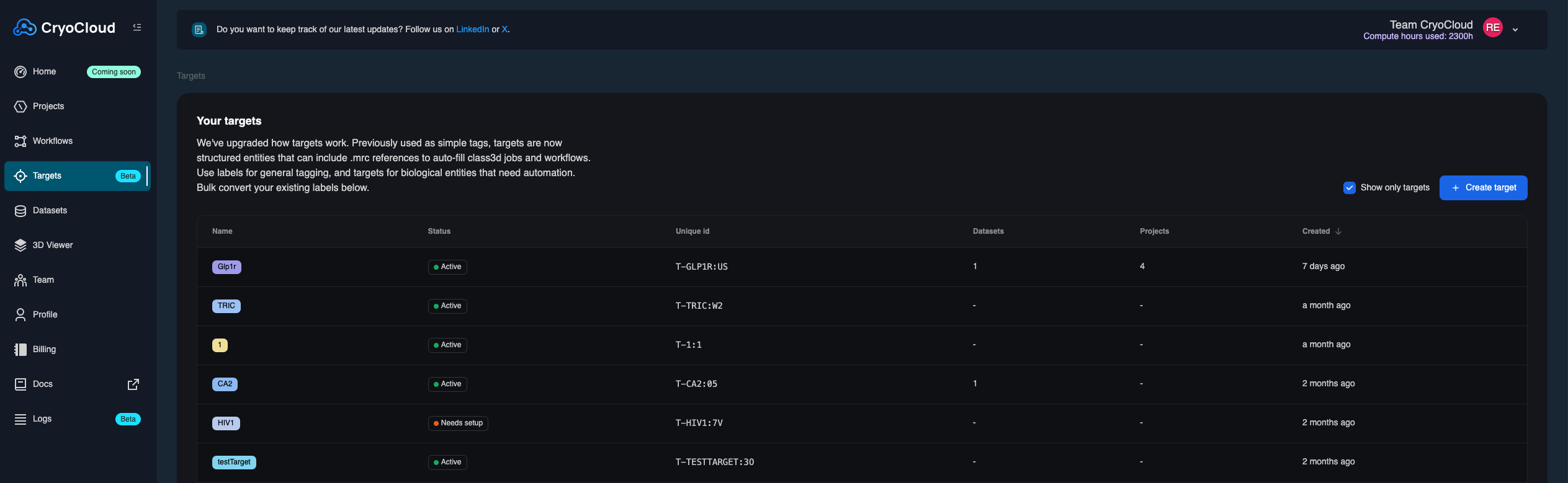
Adding a new target
To add a new target follow the following steps
- Go to the ‘Targets’ page in the left navigation bar.
- Click on 'Create Target on the top right.
- Specify a name and confirm.
Set up a primary reference to enable 0-click, end-to-end workflows.
Setting a primary reference allows you to use general workflows (e.g. motion correction to Refine3D) and have the reference for class3D jobs, automated class selections, and 3D Refinements being automatically prefilled if that is set in the workflow. This allows you to launch a workflow to dozens of different datasets in parallel, and the right reference will be selected if the dataset is labelled correctly.
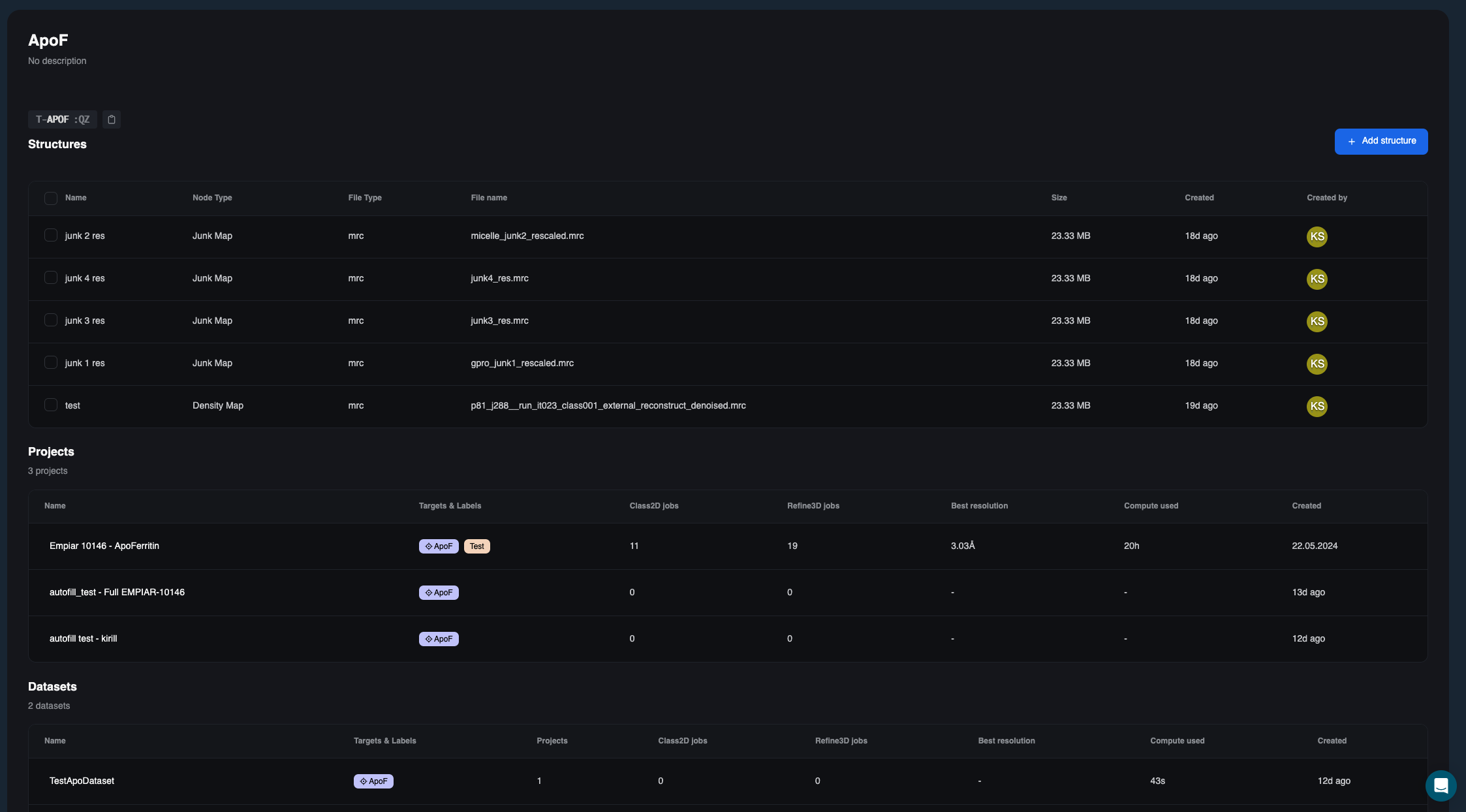
- Open the newly created target
- Click on add structure
- Specify a name
- In the dropdown, select ‘Primary Map’ and upload your density map.
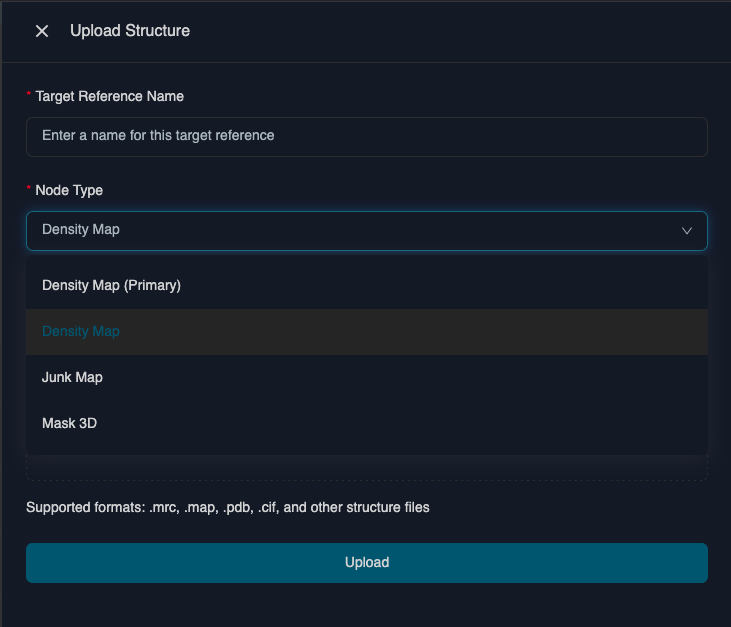
Upload pdbs, decoy classes and masks
Uploading pdbs, decoy classes and masks to your target allows you to manage your main structural assets in one single interface. This will also enable target specific workflows (coming soon).
To upload, use the same workflow as described for the primary map and choose the correct
Browse your results per target
At the bottom of the target page you can find a list of all the projects and datasets for this target. You can sort each column by clicking on the column header.
Promoting a label to a target
If you already used our labels prior to the targets feature, promoting a label to target allows you to update the labels on all datasets and projects to target label and preserve all the connections.
To promote a label to target, click on a label in the list. A window will open and guide you through the steps to promote the label to a target.
Next steps
- Setup a workflow
- Upload a dataset
- Create a project from a workflow