Projects
The Projects page can be accessed via the Projects tab in the left-hand navigation panel. It provides an overview of all projects available to your team, including both active and archived projects.
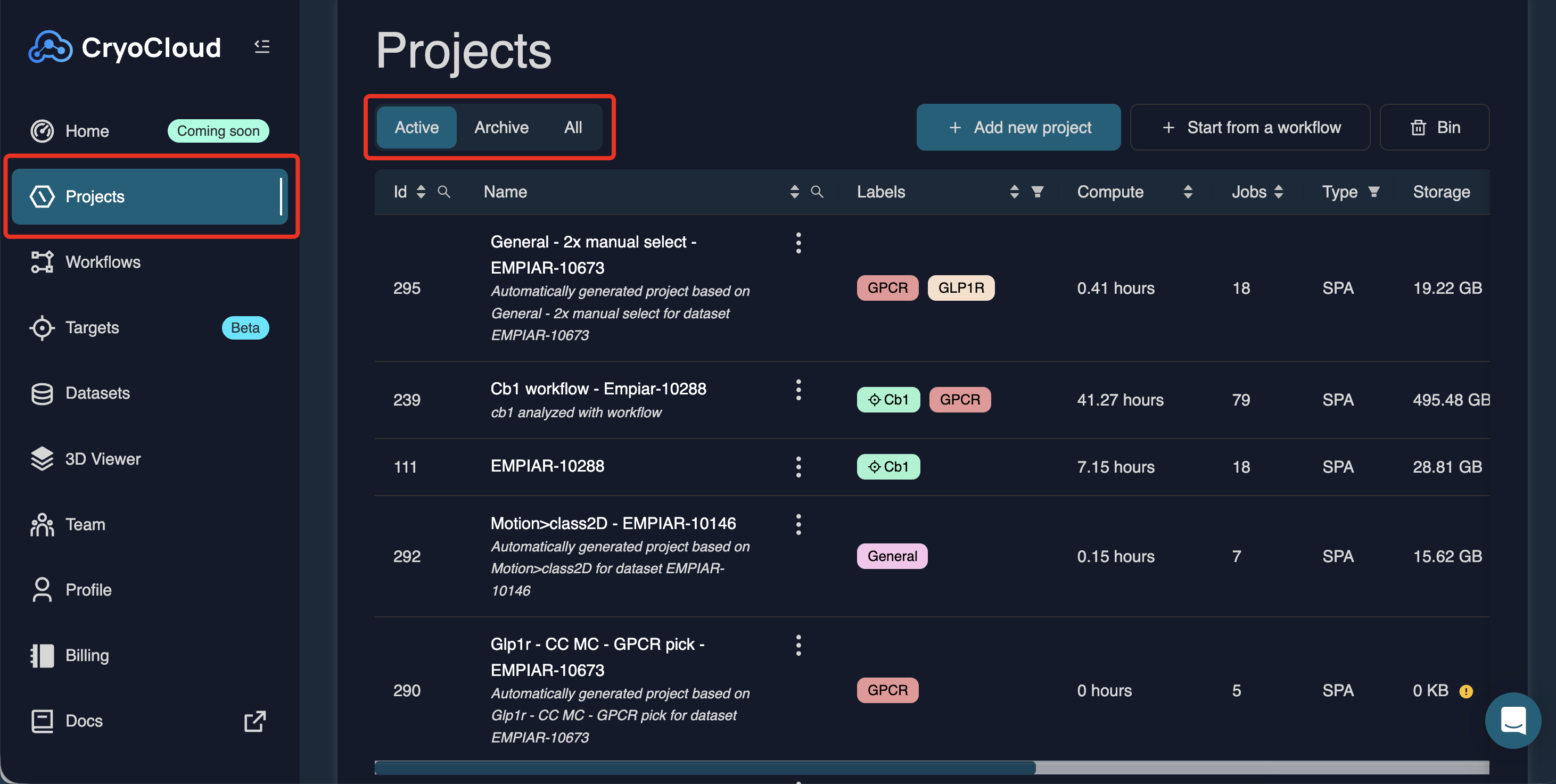
From this page, you can:
• View project details and status
• Manage project storage (archive or retrieve projects)
• Filter and sort projects
• Open projects for inspection or continuation
• Delete projects
Project categories
Projects are grouped into the following categories:
• Active – Projects stored in your team’s S3 bucket. These projects incur active storage costs and are available for compute jobs and downloads.
• Archive – Projects moved to low-cost archive storage. Archived projects are not available for compute jobs or file downloads until retrieved.
• All – Displays all projects visible to your team, regardless of storage state.
Creating a new project
To learn how to create a new project, see the Create a project page
To create a new project using an automated, predefined workflow, see the Workflows page
Navigating the project table
You can search, filter, and sort projects using several controls:
• Search (magnifying glass) – Search projects by ID or name.
• Filter (funnel icon) – Filter projects by target labels, project type (SPA, Cryo-ET, X-ray), data status (active, archived, archiving), or creator.
• Column sorting – Click any column header (e.g. storage usage, compute time, number of jobs, creation date, last updated) to sort the table in ascending or descending order.
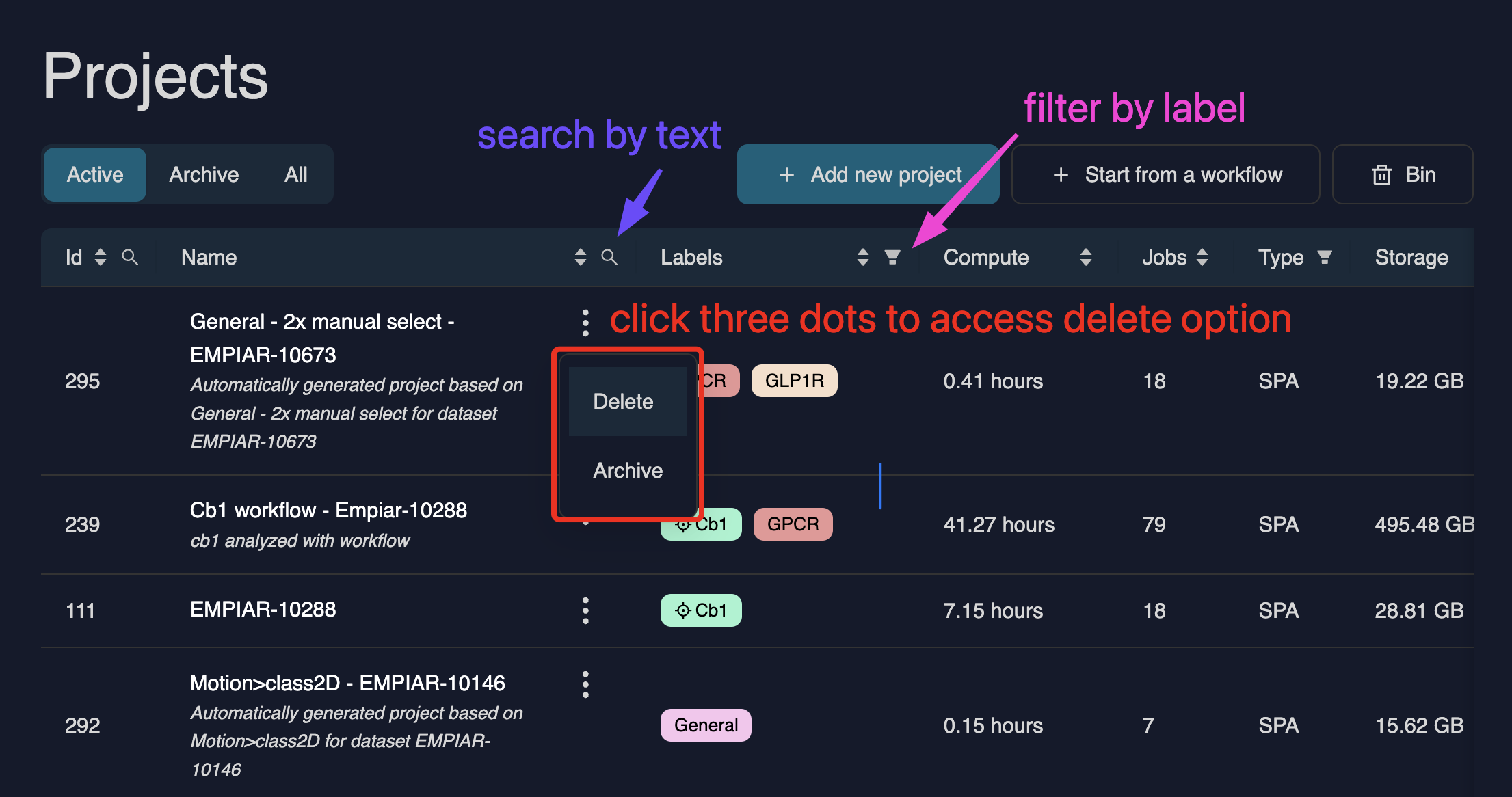
You can open a project by clicking its name.
Clicking the three-dot menu next to a project opens additional actions, such as archiving or deleting the project.
Additional project details (e.g. creator or creation date) can be viewed by scrolling horizontally in the table.
Opening and navigating the project grid
Click a project name in the table to open it. The top section of the project dashboard provides access to several key functions:
• Project details – Displays project metadata such as name, description, number of jobs, creation date, and last updated time. Click (top right) to update the project name, description, or labels.
• Datasets – View and navigate to datasets linked to the project.
• Archive – Upload, view, or download external files associated with the project, such as reference maps or masks.
• Reports – View all reports generated for the project.
• Grid / Table view – Switch between grid and table representations of project jobs.
• Bin – View jobs that have been moved to the project bin.
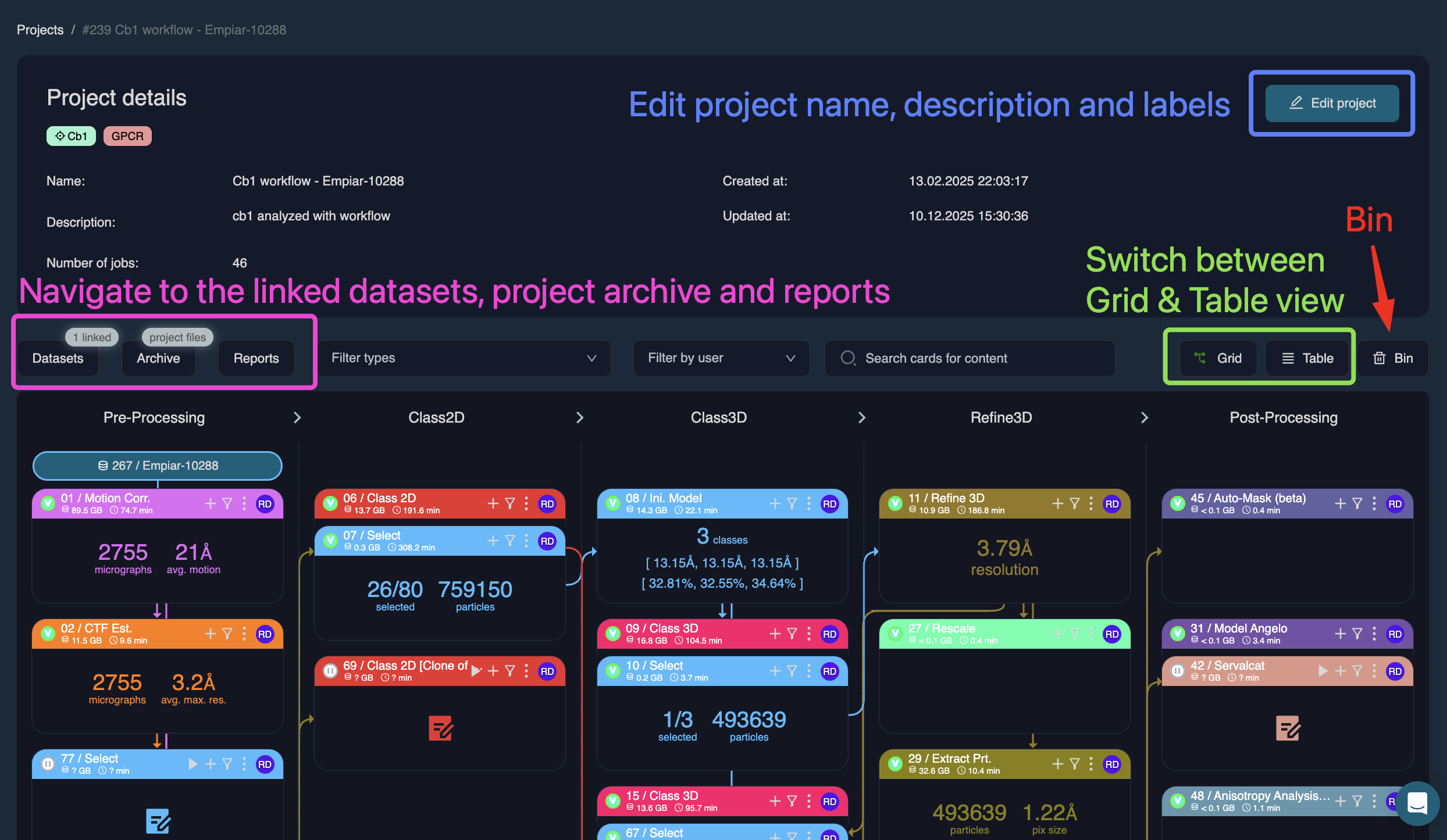
Grid view
Grid view displays all jobs in the project organised into five columns: Pre-processing, Class2D, Class3D, Refine3D and Post-processing.
This view provides a visual overview of the processing pipeline and job dependencies. Detailed navigation of the grid view is described on a dedicated page
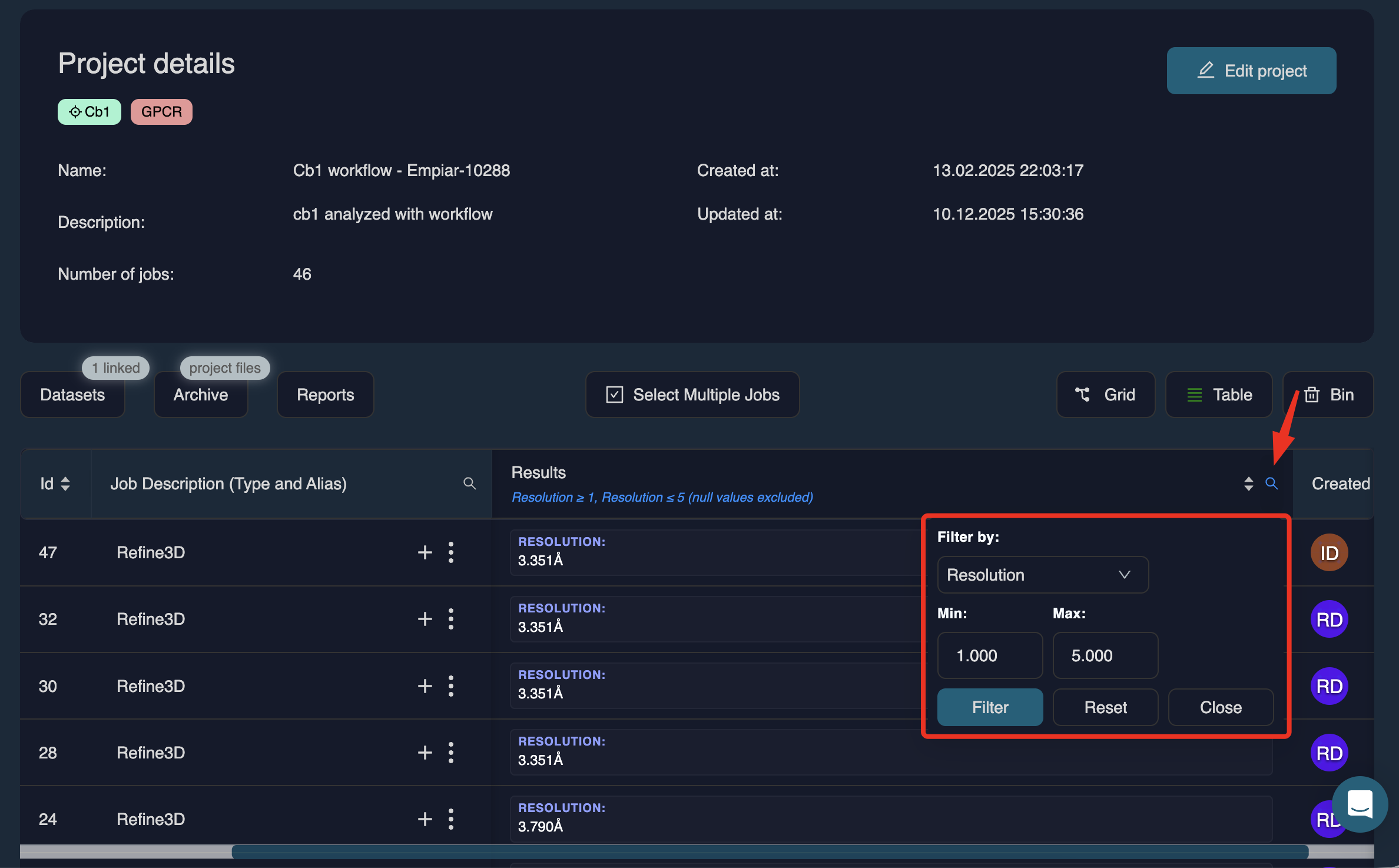
Table view
Table view provides an alternative, metadata-rich representation of all jobs in a project. This view is particularly useful for filtering and sorting jobs based on parameters such as resolution, status, or compute time, making it easy to identify specific subsets of jobs.
Archiving a project
To archive a project, click the three dots next to the project and select Archive. This will bring up a menu which will look like this:
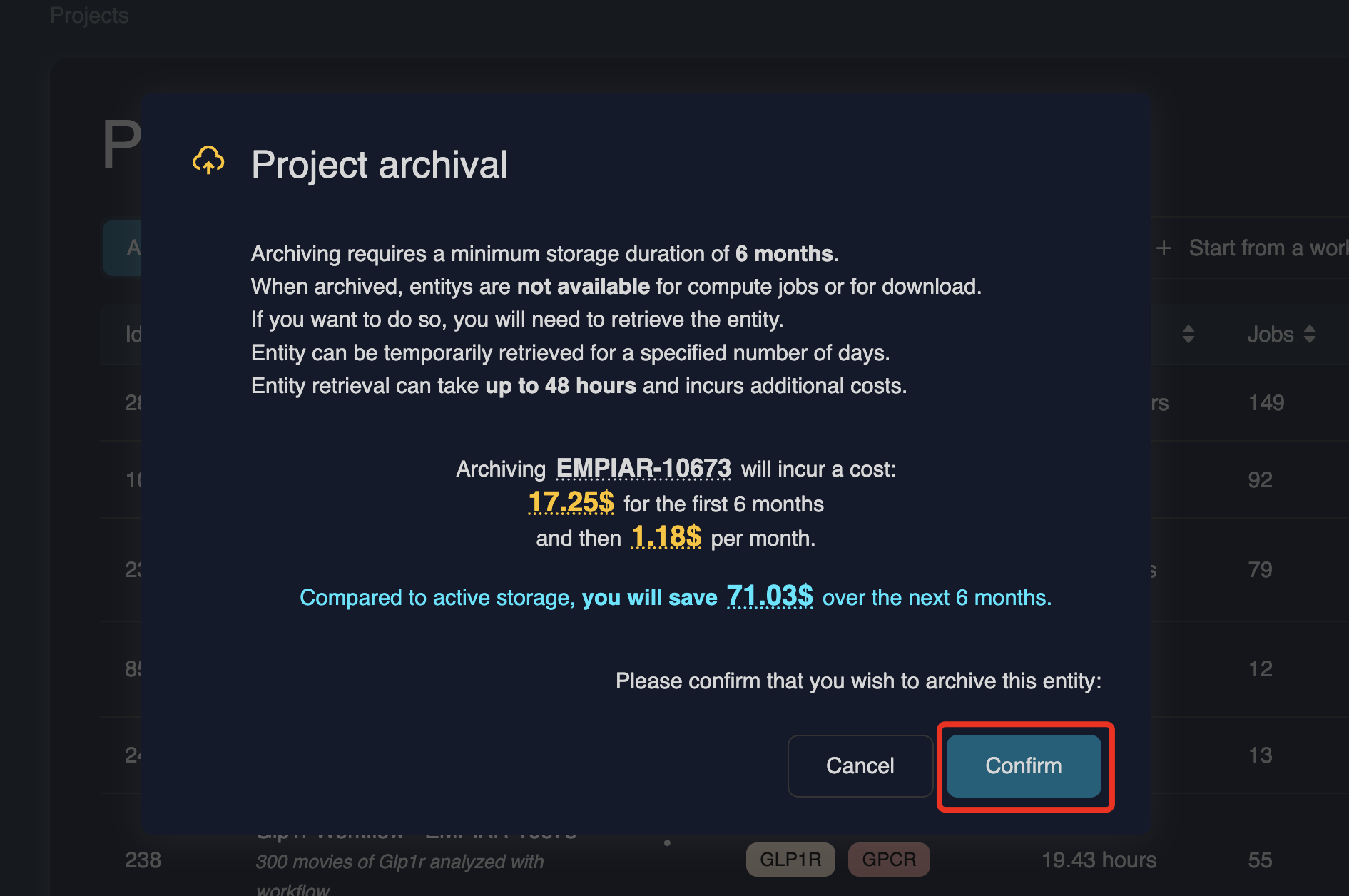
Review the confirmation window, which explains:
• Minimum archive duration (6 months)
• Retrieval conditions (up to 48 hours, extra cost)
• Expected archiving cost
• Estimated savings compared to active storage
Click to schedule archiving.
Once archived, the dataset appears in the Archive tab.
Retrieving a project from the archive
Navigate to the Archive tab in the Projects tabel, click the three dots next to the project and select Retrieve from archive. Choose the number of days you need the dataset available. You will see a retrieval summary explaining:
• Retrieval allows temporary access for compute jobs or download
• A temporary copy is created for the chosen duration
• You pay for both archived and retrieved copies during that time
• Retrieval can take up to 48 hours
Click to proceed.
Storage costs and cost savings
Storage costs vary by subscription tier. For full details, refer to the Billing page.
In general, archived projects are around 12× more cost-efficient than active storage.
Recommeded best practice: Once a project is completed, archive it to reduce storage costs while retaining the option to retrieve it later if needed.